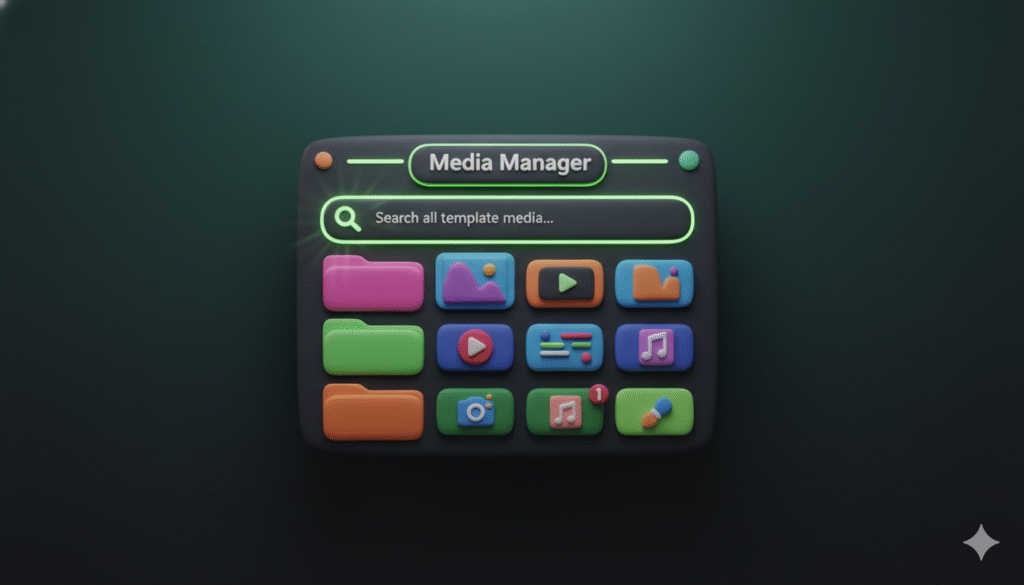
If you use Wix Studio templates, you might have noticed a problem. The images and videos in the template do not show up in your main site media library. This makes it hard to use those same photos or videos on other pages. It also means you might accidentally delete them. This guide shows you how to find and manage all the media that comes with your template.
Why can’t I find my template’s media in Wix Studio?
When you build a site with a Wix Studio template, the media is embedded directly onto the pages you place it on. It is not automatically uploaded to your site’s central media manager. This is why you cannot easily reuse it or see all your assets in one place. The media is tied to the specific element you added it to.
How to get template media for reuse on other pages
Since the media is not in your main library, you need to save it to your assets manually. Here is the best way to do it:
- Find the page with the image or video you want to save.
- Click on the media element (like the picture or video player) to select it.
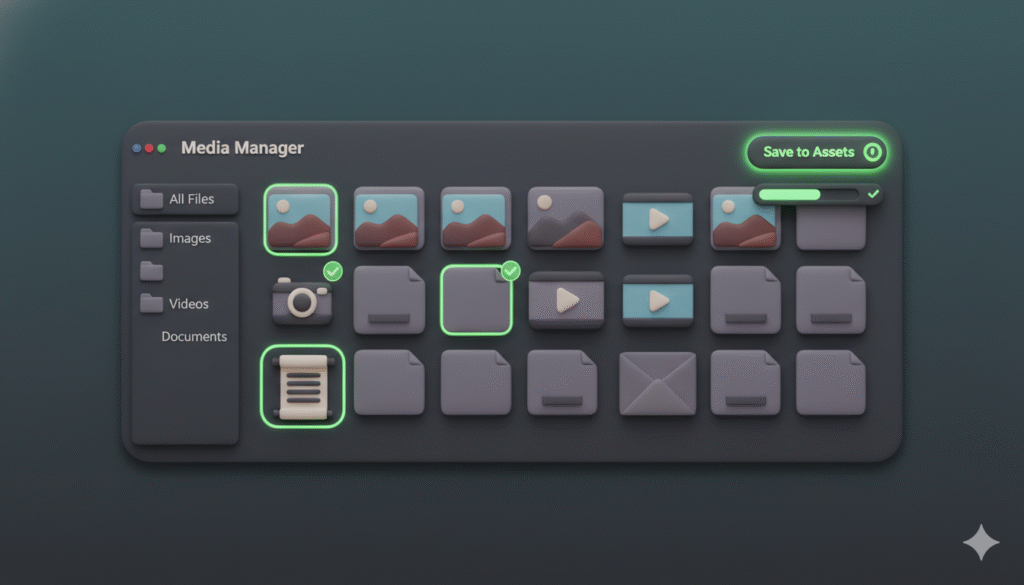
- In the editor panel that appears, look for the option to Save to Saved Assets or a similar command. This might be represented by a bookmark or plus icon.
- Click that button. Wix Studio will now save a copy of that media file to your Saved Assets library.
Once a media file is in your Saved Assets, you can use it anywhere on your site. Just go to the media manager, find your Saved Assets section, and drag the file to any new page or element.
How to avoid losing template media
The biggest risk with embedded template media is losing it. If you delete the original page or element, you could lose that media file forever. Following the steps above to save your media to your assets is the best protection.
By saving all important template media to your Saved Assets, you create a safe, central collection. This means you can delete or change the original page without worrying about losing the images and videos. Your saved copies are secure and ready to use.
Managing your website media the right way
Dealing with template media can be frustrating. The key is to always save a copy to your assets as soon as you know you will need it again. This simple habit saves you time and prevents the stress of lost files. It gives you full control over all the visual content on your Wix Studio website.