Struggling to edit your sticky navbar in Webflow because you can’t see it in the editor? You are not alone. This is a common problem that can stop your design work in its tracks.
The good news is, it is usually a simple fix. This guide will show you the exact steps to make your sticky navbar visible and editable again.
Why is my sticky navbar not visible in the Webflow editor?
A sticky navbar disappears in the Webflow designer for a few key reasons. The most common one is that the navbar is set to become sticky only after you scroll down the page. Since the Webflow designer view starts at the very top of the page, the sticky state is not active yet. Other reasons can include the navbar being behind another element or having its visibility turned off.
How to make a sticky navbar visible for editing
Follow these steps to find and edit your sticky navbar.
1. Scroll down in the designer
This is the first and easiest thing to try. Simply click and drag the scrollbar on the right side of the Webflow designer window. Scroll down a little bit. As soon as you scroll past the point where the navbar becomes sticky, it should appear and lock into place at the top of your viewport. You can then click on it to edit.
2. Use the Navigator panel
The Navigator is the best tool for selecting elements that are hard to click. You can find it in the left-hand panel of the designer. It shows a full tree of all elements on your page. Look for your navbar section (it might be called a Div Block, Section, or Container) in this list. Clicking its name in the Navigator will select it in the designer, even if it is not currently visible.
3. Check the element’s position
Sometimes, the navbar might be behind another element. With the navbar selected via the Navigator, check the Styles panel on the right. Look at the position settings. If it’s set to sticky, also check its Z-index. A higher number (like 999) means it should appear in front of other elements. If the Z-index is low, another element might be covering it.
4. Review the sticky settings
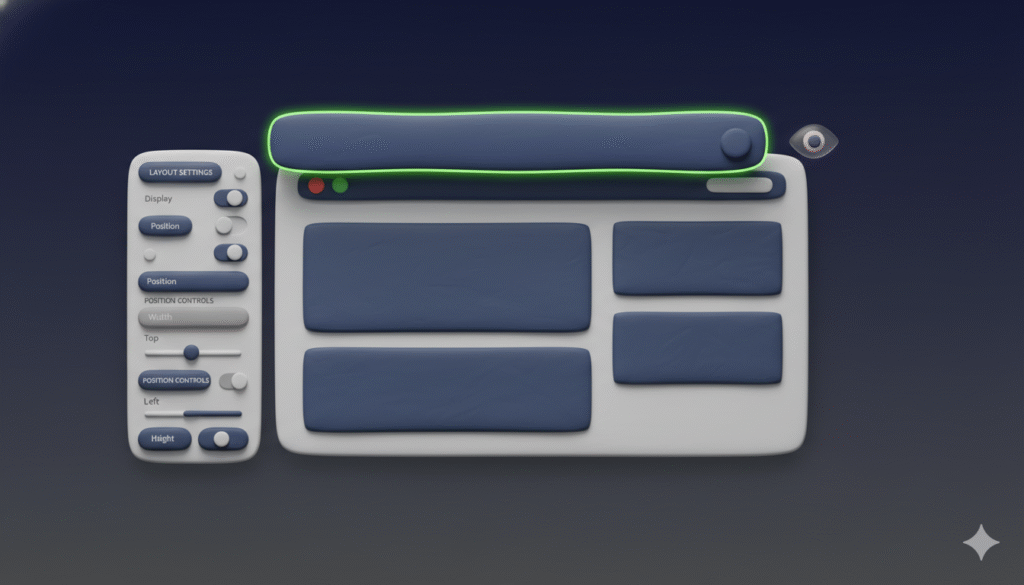
Click on your navbar in the Navigator. In the Styles panel, click on the position property (where it says “Sticky”). A settings window will appear. Make sure the sticky position is set to Top, and the distance is 0px. Also verify that it is set to stick to the Viewport and not just its parent container.
What to do if your navbar is still not visible
If you have tried all the steps above and your navbar still will not show up, check these final options:
• Check for display: none
In the Styles panel, look for any display property set to “None”. If you find one, change it back to “Block” or “Flex”.
• Look in the Body tag
In rare cases, a navbar might be placed directly inside the Body tag. Make sure to check the very top of the Navigator list, as it might be outside your main page sections.
Final steps for editing your navbar

Once your navbar is visible and selected, you can edit it like any other element. Change the background color, update the logo, or modify the menu links. All your changes will be applied to the sticky state of the navbar.