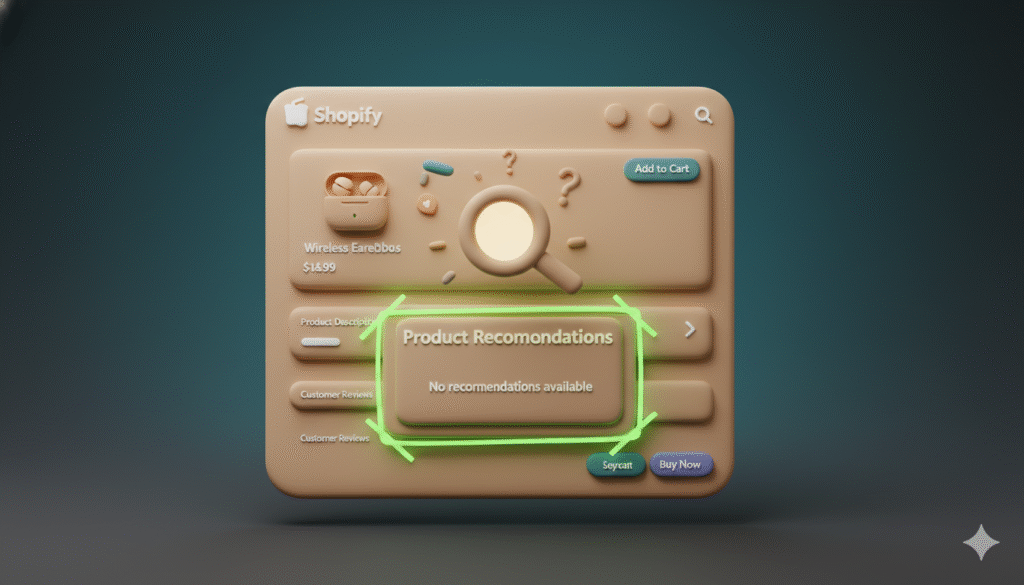
If you run a Shopify store, you might use product recommendations. They help customers find more items they like. But sometimes, this feature stops working. The section might flash on the screen and then vanish. This is a common problem, but it is usually easy to fix.
This guide will show you how to find the cause and solve it step by step. We will cover simple checks and code fixes.
Why are my product recommendations not showing?
There are a few main reasons why this happens. Often, it is a small setting in your theme or a problem with the code on your product page. Here is a list of the most common causes:
• The feature is on in your admin but not enabled in your theme editor.
• A JavaScript error on the page is stopping the recommendations from loading.
• The code in your theme files has a mistake or is missing.
How to check if product recommendations are enabled in your theme
First, you need to make sure the section is turned on in your theme customizer.
- From your Shopify admin, go to Online Store > Themes.
- Find your current theme and click Customize.
- Navigate to a product page template.
- Look for the product recommendations section in the theme editor. It might be called “Recommended products” or something similar.
- If it is not there, you may need to add it. Click Add section and look for it in the list.
- If it is there, make sure the toggle is switched on and the settings are correct.
How to fix a JavaScript error that breaks recommendations
Sometimes, the code for recommendations loads, but another error on the page breaks it. This can make it appear for a second and then disappear. To check for this, you can use your browser’s developer tools.
- On your product page, right-click and select Inspect.
- Click on the Console tab.
- Look for any red error messages.
- If you see an error that mentions product-recommendations, it means there is a code problem.
A common fix is to check the code in your product-recommendations.liquid file. Make sure it is correct. Here is a basic example of what that code should look like:
<div class="product-recommendations" data-product-id="{{ product.id }}" data-limit="4">
  {% if recommendations.products_count > 0 %}
    <h2>You may also like</h2>
    <div class="recommendations-grid">
      {% for product in recommendations.products %}
        {% render 'product-card', product: product %}
      {% endfor %}
    </div>
  {% endif %}
</div>

<script>
  const productRecommendationsSection = document.querySelector('.product-recommendations');
  const productId = productRecommendationsSection.dataset.productId;

  fetch(`${window.location.origin}/recommendations/products?section_id=product-recommendations&product_id=${productId}&limit=4`)
    .then(response => response.text())
    .then(text => {
      const html = document.createElement('div');
      html.innerHTML = text;
      const recommendations = html.querySelector('.product-recommendations');

      if (recommendations && recommendations.innerHTML.trim().length) {
        productRecommendationsSection.innerHTML = recommendations.innerHTML;
      }
    })
    .catch(e => {
      console.error(e);
    });
</script>
What to do if the product recommendations code is missing
If your theme does not have the product-recommendations.liquid file, you may need to add it. You can get this file from a default theme like Dawn.
- Go to your Shopify admin and click Online Store > Themes.
- Find the Dawn theme and click Actions > Edit code.
- In the left sidebar, find the Sections folder.
- Look for the file named product-recommendations.liquid and copy its entire contents.
- Go back to your own theme’s code editor.
- In the Sections folder, create a new file called product-recommendations.liquid.
- Paste the code you copied from the Dawn theme into this new file.
- Save the file.
Summary of steps to fix disappearing recommendations
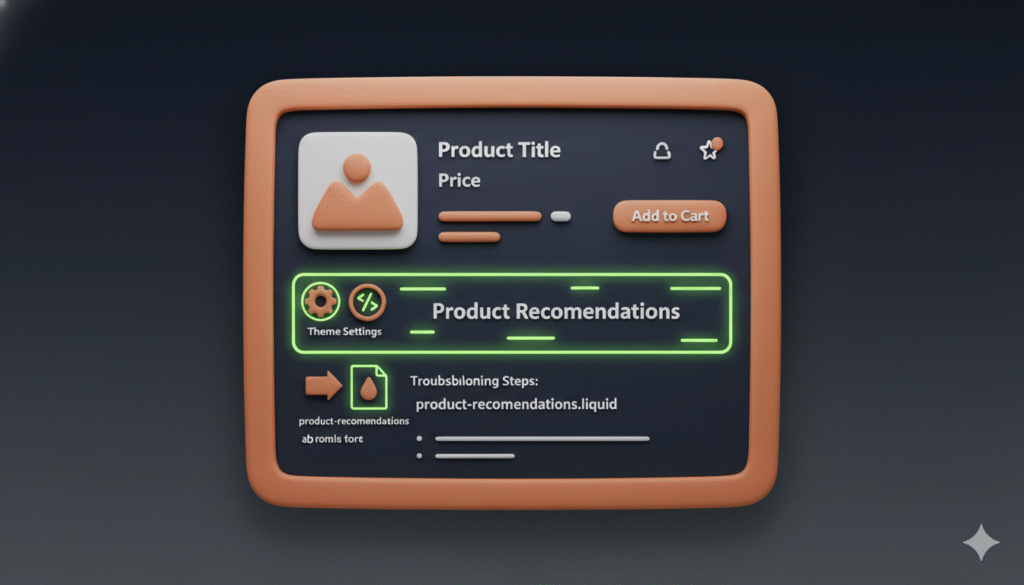
To solve the issue of product recommendations not showing, follow these steps in order:
- Check the theme editor to make sure the section is added and enabled.
- Look for JavaScript errors in your browser’s console.
- Verify that your theme has the correct product-recommendations.liquid file.
- Replace the code in that file with a working version from a default theme if needed.