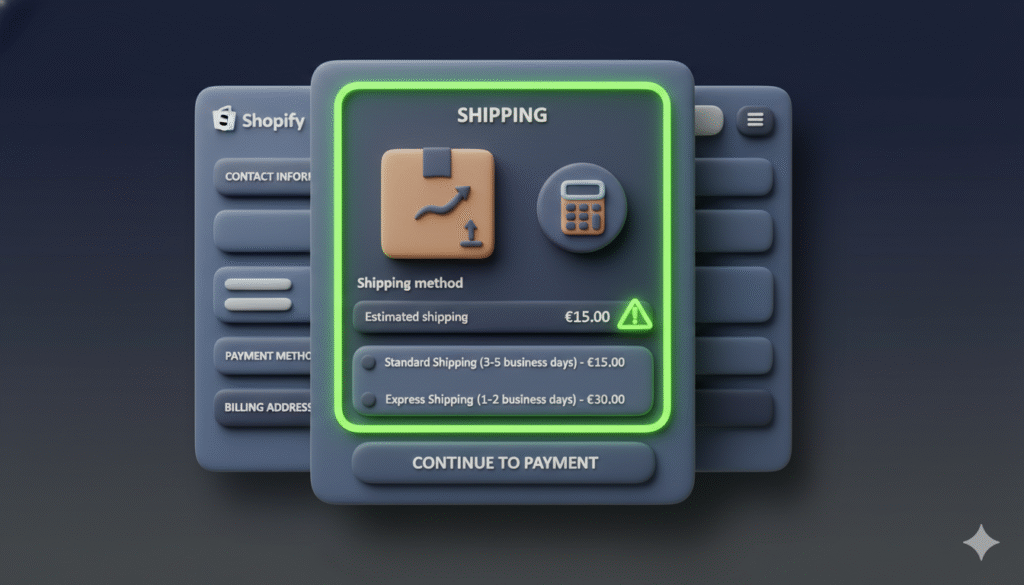
If you run a Shopify store, finding out that your shipping rates are wrong can be a real headache. You set up your shipping profiles, but then you see an order where the customer was charged $9.69 for shipping, while it actually cost you nearly $13 to ship. This problem, where Shopify undercharges for shipping, eats directly into your profits.
This guide will walk you through the common reasons why Shopify might be undercharging shipping costs and show you how to fix it, step by step.
Why is my Shopify store undercharging for shipping?
There are a few main reasons why this happens. It usually comes down to a small mistake in your settings. Here are the most common causes:
- Your shipping zones are not set correctly.
- The product weight is missing or wrong.
- Your calculated shipping rates are not updating with carrier prices.
- A discount code is applying to shipping costs.
How to check your shipping zones
Shipping zones tell Shopify where you are willing to ship your products. If a customer’s address falls outside of your defined zones, Shopify might use a default rate, which could be lower than the actual cost.
Here is how to check your shipping zones:
- From your Shopify admin, go to Settings > Shipping and delivery.
- In the Shipping profiles section, find and click on the profile you want to check.
- Look at the Rates and the zones they apply to (like “United States” or “Domestic”).
- Make sure the countries and regions listed are exactly where you ship. Remove any zones you do not serve.
How to fix missing or incorrect product weights
Shopify uses product weight to calculate shipping costs with carriers like USPS, UPS, and FedEx. If the weight is zero or too low, the calculated rate will also be too low.
To check and update product weights:
- Go to Products > All products from your admin.
- Click on a product name to open its details.
- Scroll down to the Shipping section.
- Ensure the Weight field is filled out correctly. You must use the weight unit (like lbs or kg) that you set in your Settings.
- Click Save. You need to do this for every product in your store.
How to make sure your calculated rates are accurate
If you use Shopify’s calculated shipping rates, you need to ensure they are pulling the latest prices from the shipping carriers.
- Go to Settings > Shipping and delivery.
- In your shipping profile, find a calculated rate and click Edit.
- Make sure the carrier and service (like “USPS – Priority Mail”) are correctly selected.
- Check that the Use carrier or app to calculate rates option is enabled.
- You can also add a handling fee here to help cover packing materials or your time.
Can a discount code cause shipping undercharging?
Yes. Sometimes, a customer might use a discount code that also applies to shipping. If you have a “Percentage off” discount, it might be set to apply to the total order, including shipping.
To check your discount codes:
- Go to Discounts in your admin.
- Click on each active discount code.
- Look at the Applies to section.
- If you do not want the discount to affect shipping, make sure it is set to Specific products, or make sure the Customer pays shipping option is selected if available.
Step-by-step guide to troubleshooting shipping charges
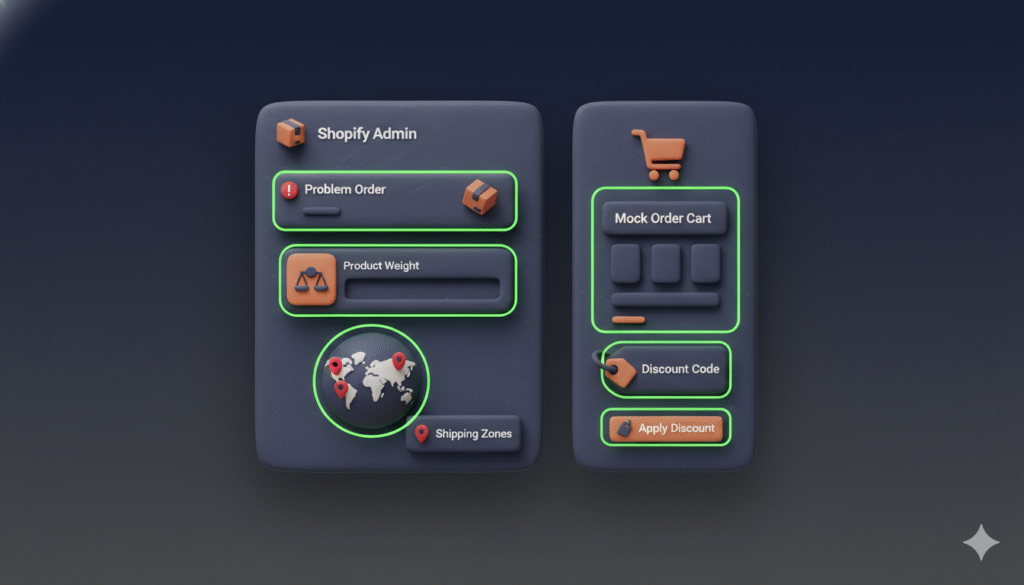
Follow this checklist to find and fix the issue:
- Audit a problem order. Pick an order where the shipping was wrong. Note the product, its weight, and the customer’s shipping address.
- Check the product weight. Go to that product in your admin and confirm the weight is correct.
- Verify the shipping zone. Check if the customer’s address is within a shipping zone you have set up.
- Test a mock order. Use the customer’s zip code and the product in your cart to see the shipping cost your store quotes. Does it match what the customer paid?
- Review your discount codes. If a code was used, check its settings.