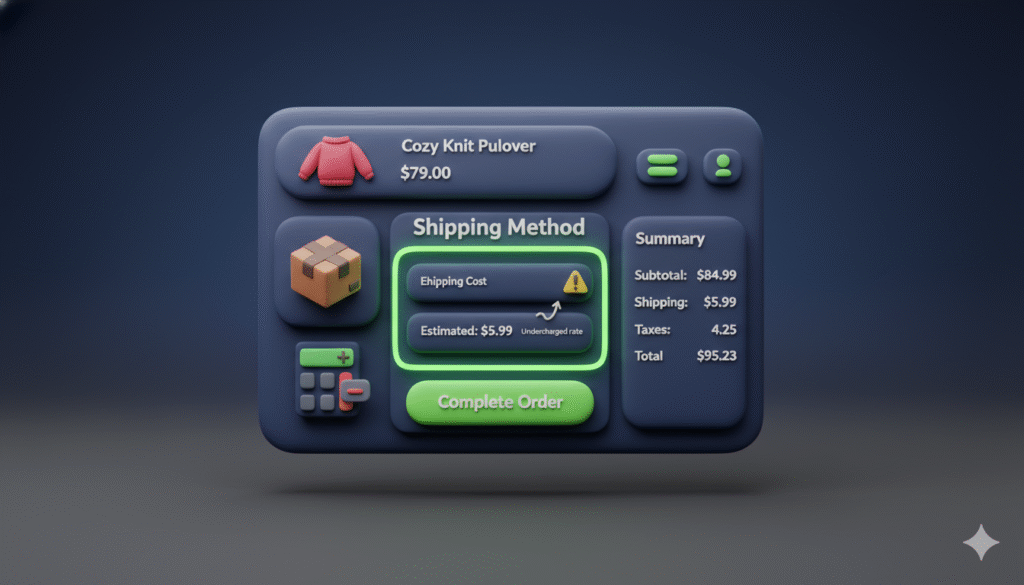
Are your Shopify shipping charges lower than what you actually pay? If Shopify is undercharging customers for shipping, your profits are taking a hit. This guide shows you how to find the cause and fix it for good.
Why is my Shopify store undercharging for shipping?
Shopify calculates shipping costs based on your settings. When the final charge is less than the actual shipping cost, it usually comes down to one of these issues:
- Incorrect shipping zone settings
- Mistakes in weight-based rules
- Problems with carrier calculated rates
- Conflicts with third-party shipping apps
How to check your Shopify shipping settings
Follow these steps to find why your shipping costs are wrong:
1. Review your shipping zones
Shipping zones determine where you ship and what rates apply.
Steps:
- Go to your Shopify admin
- Click Settings > Shipping and delivery
- Look at each shipping zone under General shipping rates
- Check if the rates match what you actually charge customers
2. Check your product weights
If you use weight-based shipping, wrong product weights cause wrong charges.
Steps:
- Go to your Shopify admin
- Click Products > All products
- Open each product and check the weight field
- Make sure weights are accurate and use the right unit (lbs, kg, oz)
3. Verify carrier calculated shipping
If you use carrier calculated rates, check these settings:
Steps:
- Go to Settings > Shipping and delivery
- Find the shipping profile using carrier calculated rates
- Check that the package dimensions are correct
- Make sure the right carriers are selected
- Verify your shipping origin address is accurate
4. Look for app conflicts
Third-party shipping apps can sometimes override your settings.
Steps:
- Go to Apps > Installed apps in your Shopify admin
- Temporarily disable shipping apps one by one
- Test shipping rates after disabling each app
- If rates become correct, you found the problem app
How to set up accurate shipping rates
Follow this method to prevent undercharging:
Create flat rate shipping
Flat rates charge the same amount every time, regardless of weight or location.
Steps:
- Go to Settings > Shipping and delivery
- Click Manage rates for the zone you want to edit
- Add a flat rate that covers your average shipping cost
- Include a small buffer for unexpected price increases
Set up weight-based rates correctly
Weight-based rates charge different amounts based on product weight.
Steps:
- Go to Settings > Shipping and delivery
- Click Manage rates for your shipping zone
- Create weight ranges with appropriate prices
Example:
- 0–1 lb: $5
- 1–5 lbs: $10
- 5+ lbs: $15
- Test with different product combinations to verify accuracy
Use carrier calculated rates properly
Carrier rates pull real-time costs from shipping companies.
Steps:
- Go to Settings > Shipping and delivery
- Edit your shipping profile and enable carrier calculated rates
- Choose the carriers you actually use (USPS, UPS, FedEx)
- Set up handling fees to cover packaging costs
- Test with different addresses to ensure accuracy
Common shipping mistakes to avoid
These errors often cause undercharging:
- Leaving product weights at zero
- Using the wrong weight units
- Not setting maximum weight limits
- Forgetting to update rates when carriers increase prices
- Having overlapping weight ranges
- Not testing rates with different customer locations
Testing your shipping rates
After making changes, always test your shipping rates:
- Add products to cart with different weights
- Go through checkout with different shipping addresses
- Compare the calculated rates with what you would pay
- Make adjustments until the charges match real costs
Keep your shipping profitable
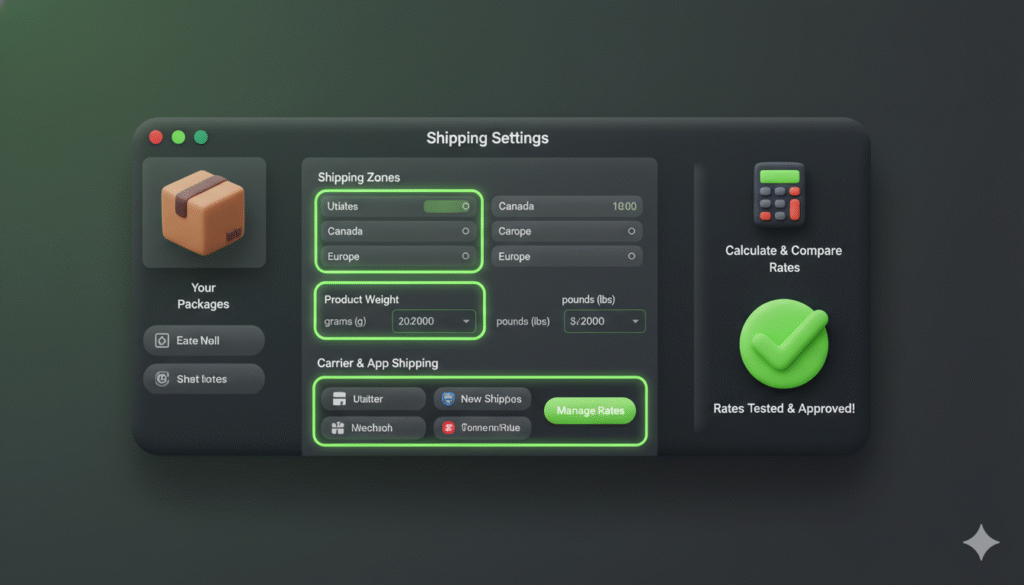
Shopify undercharging for shipping costs money directly from your business. By methodically checking your zones, weights, and carrier settings, you can identify the problem. Regular testing ensures your rates stay accurate over time. Fix your shipping settings once and stop losing money on every order.