If you are building a custom Shopify app, you might be stuck trying to find your Admin API access token. This is a common problem for many developers. This guide will show you exactly where to find it step by step.
What Is the Shopify Admin API Access Token
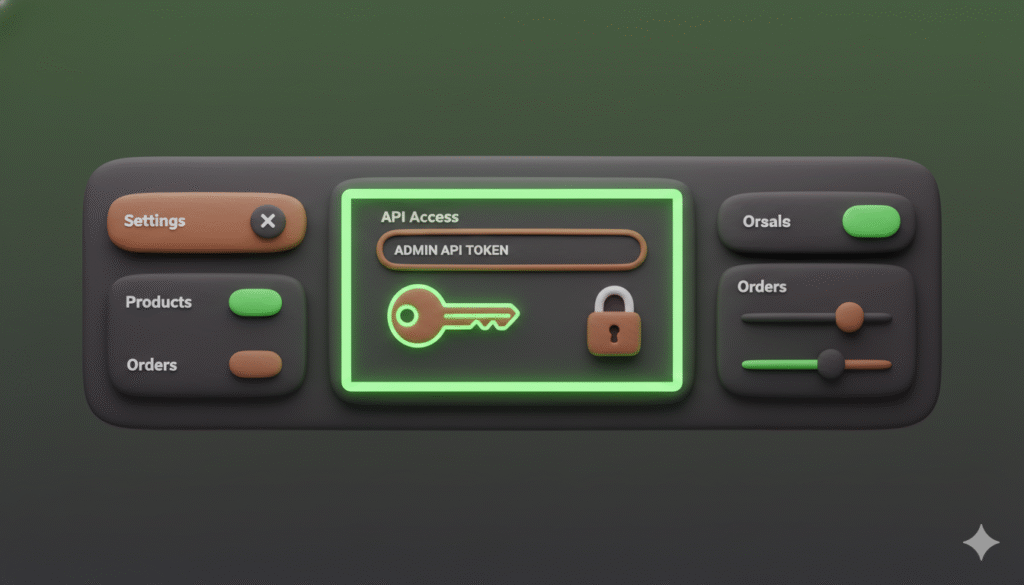
An Admin API access token is a secret key. It lets your custom app securely talk to a Shopify store. You need this token to fetch data, like product details, or to update store information. Without it, your app cannot work.
Where to Find Your Admin API Access Token
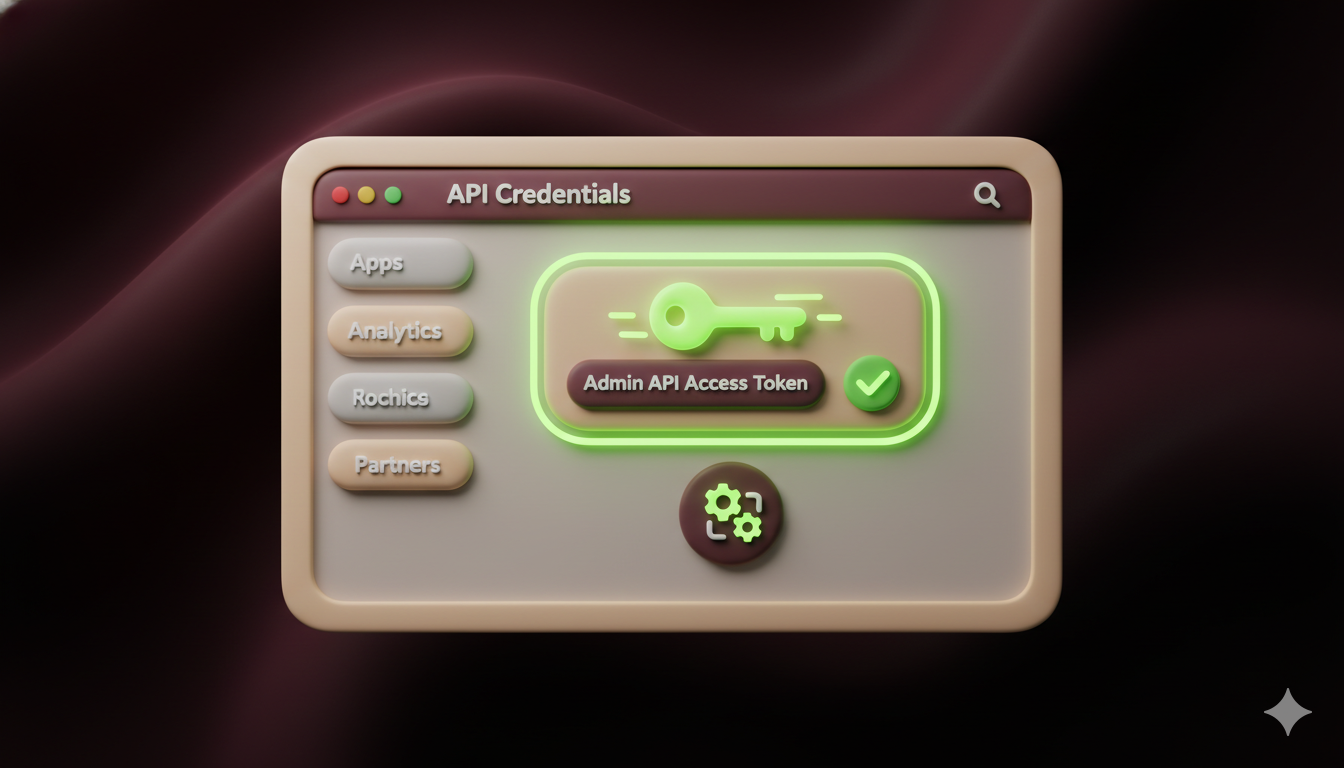
You get the access token during the app installation process. It is not found in the Shopify admin area after installation. You must go back to your app setup in the Shopify Partner Dashboard.
Follow these steps:
- Go to your Shopify Partner Dashboard.
- Click on Apps and select the app you are building.
- Look for the App setup section in the left-hand menu.
- Inside, click the API credentials tab.
- Here, you will find your Admin API access token. It is a long string of letters and numbers. You might also see it referred to as an access token.
- If you do not see it, you may need to install the app on a test store first. The token is generated after installation.
Why You Might Not See the Access Token
Sometimes, the token is hard to find. Here are a few reasons why:
- You might be looking in the wrong place. Do not look in the store admin. You must check the Partner Dashboard.
- Your app might not be installed correctly. Uninstall and reinstall it on your test store.
- You may have selected the wrong app type. Make sure you are building a custom app.
How to Use the Access Token
Once you have the token, you use it in the header of your API requests.
Here is an example using curl:
curl -X GET "https://your-store-name.myshopify.com/admin/api/2023-10/products.json" \
  -H "X-Shopify-Access-Token: your-admin-api-access-token"
Replace your-store-name with your store’s handle and your-admin-api-access-token with the actual token.
This request would fetch a list of products from the store.
Common Problems and Solutions
Problem: The API returns an error saying the access token is invalid.
Solution: Check that you copied the entire token correctly. There should be no extra spaces.
Problem: The app installs but the token is not shown.
Solution: Go to the app settings in the Partner Dashboard and review the configuration. Ensure all required fields are filled out.
Problem: The token has the wrong permissions.
Solution: Go back to the app configuration and update the Admin API scopes. Then reinstall the app on the test store to generate a new token with the correct permissions.
Conclusion
Finding your Shopify Admin API access token is simple once you know where to look. Always get it from the API credentials section in your Shopify Partner Dashboard. If you run into trouble, double-check your app setup and reinstall the app. Now you can connect your custom app and start using the Shopify Admin API.