If you run a Shopify store, you might rely on your product images changing when a customer picks a different option, like size or color. But sometimes, this feature stops working. You update your product photos, and suddenly, selecting a variant shows all images instead of just the correct ones.
This guide explains why this happens and how you can fix it. We will cover how Shopify connects images to product options and the steps to get your interactive product gallery working again.
How Do Product Images and Variants Work Together on Shopify?
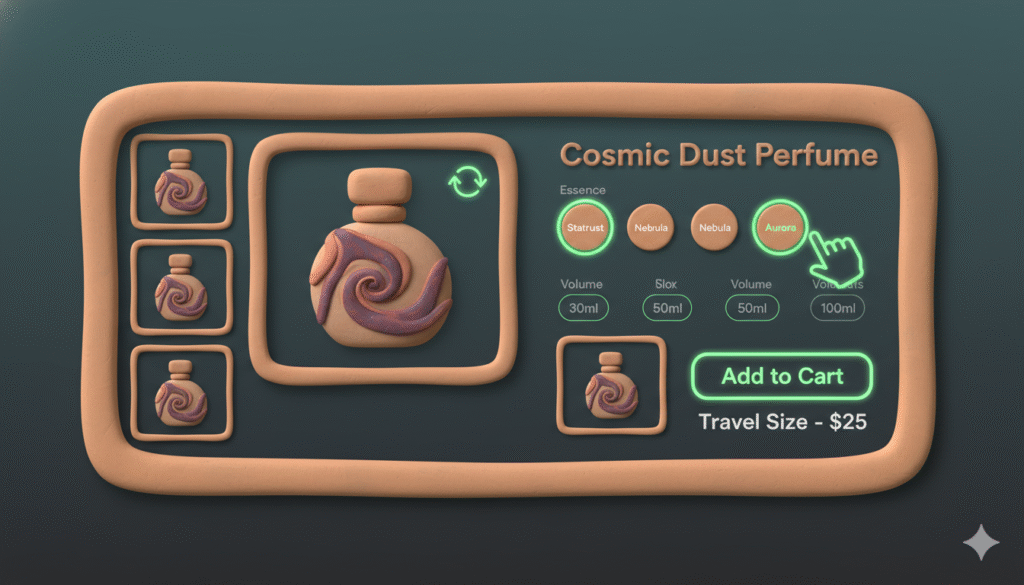
On Shopify, a product can have multiple options. These are called variants. Common variants are size, color, or frame style. You can assign specific images to each variant.
When this is set up correctly, your product page acts like a smart gallery. If a customer chooses “Large,” it shows only the images for the large size. This helps customers see exactly what they are buying.
Why Did My Product Images Stop Changing After I Updated Them?
The main reason this happens is that the connection between your new images and the product variants is broken or missing.
- When you use an app like Whitewall to create and upload images, the app often automatically links each image to a specific variant. It handles the setup in the background.
- When you upload your own custom images, this automatic linking does not happen. You are just adding images to the product’s media pool. Without a specific assignment, Shopify doesn’t know which image belongs to which variant, so it shows all images for every selection.
How to Assign Product Images to Specific Variants on Shopify
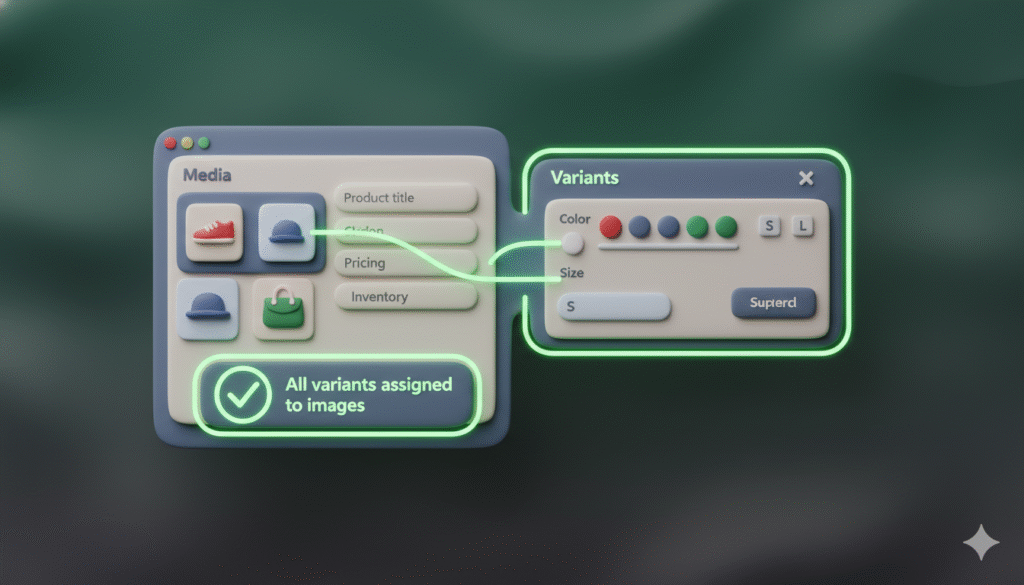
You need to manually tell Shopify which image corresponds to which variant combination. Here’s how:
- From your Shopify admin, go to Products.
- Click on the product that is having the issue.
- Scroll down to the Media section. You will see all your uploaded images.
- Scroll down to the Variants section. Here you will see all your option combinations (for example, Configuration 1 – Small, Configuration 1 – Medium, etc.).
- For each variant, click on the … (more actions) button next to it.
- Select Edit variant.
- In the variant editing window, you will see a field for Image. Click on it.
- A dropdown will appear showing all your product images. Select the one that matches this specific variant.
- Click Save.
- Repeat this process for every single variant you have.
This process creates a direct link. When a customer selects “Configuration 1 – Small,” Shopify knows to show only the image you assigned to that exact variant
What If I Have Too Many Variants to Assign Manually?
If you have a product with 9 images for 9 different variants, doing this one-by-one is manageable. But for stores with hundreds of variants, this can take a very long time.
For larger stores, consider using a bulk editor tool or a third-party app from the Shopify App Store. You can search for apps that help with “bulk image editing” or “variant image mapping.” These tools can save you a lot of time.
Best Practices for Organizing Your Product Images
To avoid problems in the future, follow these tips when setting up your products:
- Name your files clearly: Before uploading, name your image files logically. Use names like
product-blue-large.jpgorproduct-red-small.jpg. This makes it easier to pick the right image when assigning variants. - Assign images as you upload: When you add new images to a product, assign them to variants immediately. This prevents the issue from happening in the first place.
- Double check your work: After assigning images, test your product page. Go through each variant option and make sure the correct image appears.
Conclusion
Fixing product images that do not change with variant selections is usually a simple process. The solution is to manually assign each image to its corresponding variant in your Shopify admin. By taking the time to set this up correctly, you create a better shopping experience for your customers and ensure they see the right product every time.