If you sell products with different options on Shopify, you might run into a problem where your product images stop changing when a customer picks a specific size, color, or style. This guide shows you how to fix it for good.
Why Your Product Images Don’t Change When Options Are Selected
This usually happens when you add new product images manually. Shopify doesn’t automatically know which images belong to which product variant.
For example, if you sell a poster in three sizes and three frame colors, you might have nine total images. When you first set up your product, selecting “Large + Black Frame” might have shown three specific images. After you upload new images, selecting that same variant might now show all nine pictures. This is because the link between the variant and its specific images is broken.
How to Assign Images to Specific Variants on Shopify
The solution is to manually assign images to each variant in your Shopify admin. This tells Shopify exactly which pictures to show for each combination of options.
Here is how to do it step by step:
- Go to your Shopify admin and click Products.
- Find and click on the product that has the problem.
- Scroll down to the section called Variants.
- You will see a list of all your variants, like “Small / Blue” or “40×60 / Black Frame”. Click on the first variant you want to fix.
- On the right side of the variant details, you will see an option to Add image. Click it.
- A window will pop up showing all the images you have uploaded for this product. Select only the images that should appear when a customer chooses this specific variant.
- Click Save to confirm your selection.
- Repeat this process for every single variant, making sure each one has only its correct images assigned.
Important Tip for Organizing Your Variant Images
If you have multiple images for each variant, you need to be careful. For instance, if you have three different background scenes for each of your three sizes, you must assign the correct set of three background images to each corresponding size variant.
Do not assign all images to every variant. If you do, all pictures will show up no matter what option the customer selects.
Conclusion
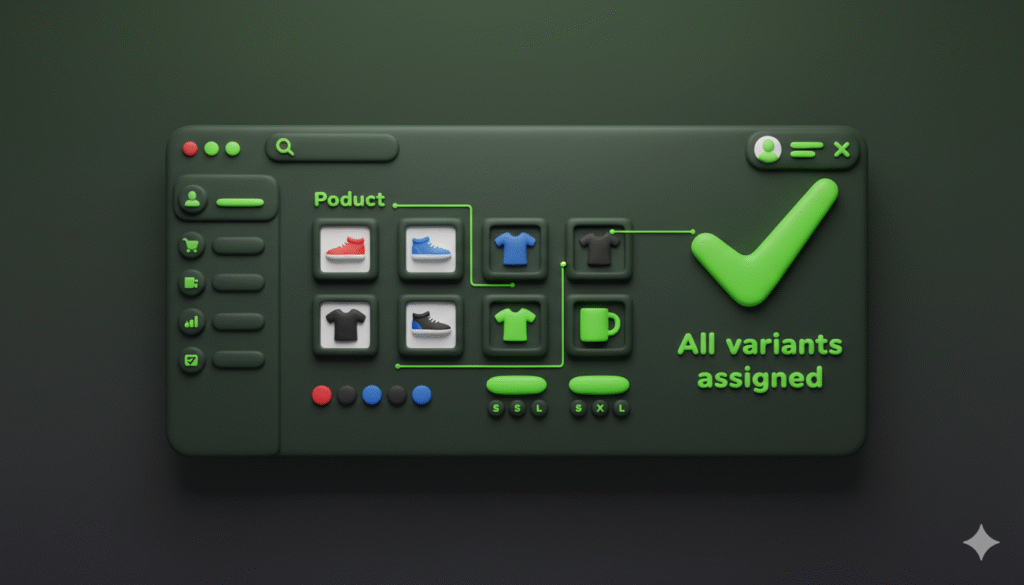
Fixing your product images is a straightforward process in your Shopify admin. By taking a few minutes to assign the right image to the right variant, you can make sure your customers see exactly what they are selecting. This improves their shopping experience and can help reduce confusion and increase sales.