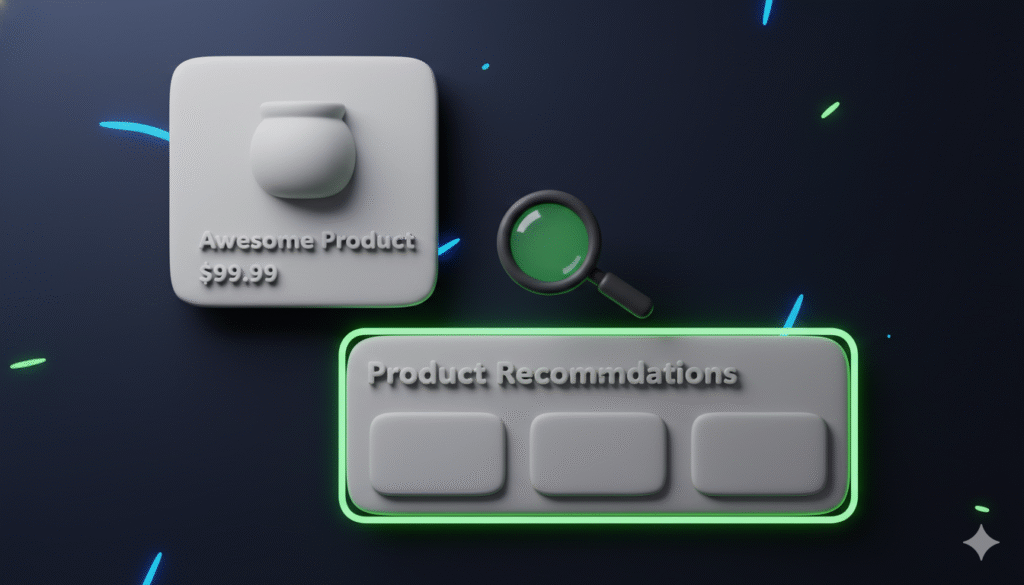
If you run a Shopify store, you might use product recommendations to boost sales. But what happens when they disappear? This is a common problem. Your recommendations might flash on the screen for a second and then vanish. This guide will show you how to find the cause and fix it for good.
Why are my product recommendations not showing?
There are a few main reasons why your product recommendations section might be blank or disappearing. Often, it is not just one simple setting. The issue could be related to your theme, a conflicting app, or custom code. We will walk through how to check each of these areas.
How to check if product recommendations are enabled
First, make sure the feature is actually turned on in your Shopify admin.
- From your Shopify admin, go to Online Store > Themes.
- Find your current theme and click Customize.
- Navigate to your product page template.
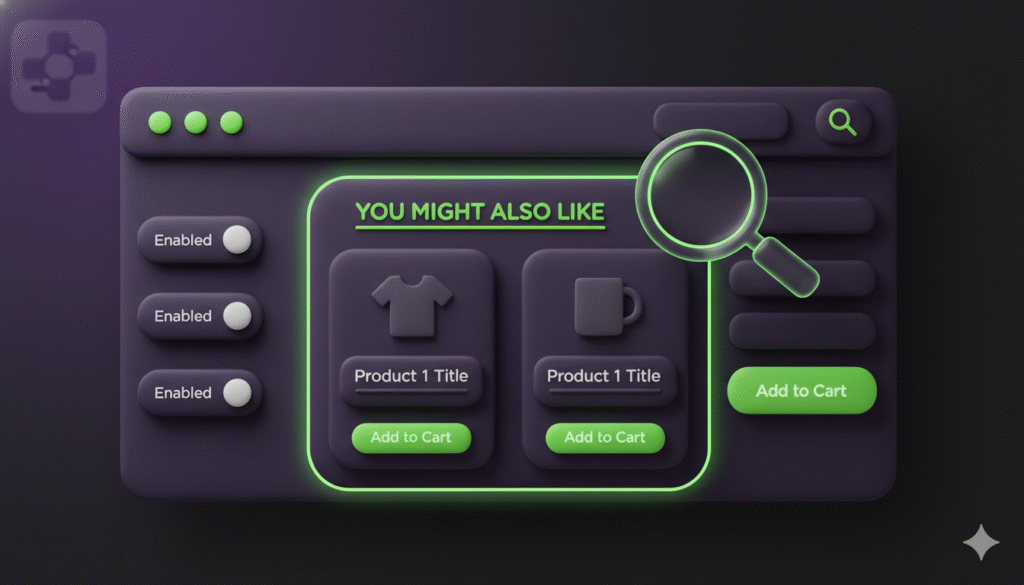
- Look for the product recommendations section in the theme editor and click on it.
- Ensure the setting for Show dynamic recommendations is checked or toggled on.
Sometimes, the section might be enabled but set to show only under certain conditions, like for specific products or customer types. Double-check these settings.
How to test for app conflicts
A third-party app can sometimes break your theme’s features. This is a very common cause for recommendations that disappear.
- From your Shopify admin, go to Apps.
- Temporarily disable your apps one by one. Start with the most recent ones you installed.
- After disabling each app, check your live store to see if the recommendations appear correctly.
If the problem fixes itself after disabling a specific app, you have found the conflict. You can then contact that app’s support team for a solution or look for an alternative app.
How to check your theme code for errors
If the settings are correct and there are no app conflicts, the issue might be in your theme’s code. A small error can cause the entire section to fail.
You will need to look at the code for the product recommendations section. This is usually found in a file called product-recommendations.liquid or within your product template file.
Here is an example of what a basic product recommendations section code might look like:
<div class="product-recommendations" data-url="{{ routes.product_recommendations_url }}?section_id={{ section.id }}&product_id={{ product.id }}&limit=4">
  {% if recommendations.performed and recommendations.products_count > 0 %}
    <h2>You may also like</h2>
    <div class="recommendations-grid">
      {% for product in recommendations.products %}
        {% render 'product-card', product: product %}
      {% endfor %}
    </div>
  {% endif %}
</div>
The key part is the if statement. It only shows the recommendations if Shopify successfully returns products. If there is a JavaScript error on the page, it can prevent this code from running properly, making the section appear blank.
How to fix common code problems
One frequent issue is missing or broken JavaScript. The product recommendations feature often uses JavaScript to fetch and display the products. If there is an error in your theme’s JavaScript, it can stop this process.
To check for this, open your website in a browser like Chrome. Right-click on the page and select Inspect, then go to the Console tab. If you see any red error messages, they could be the reason your recommendations are failing.
Next steps to get your recommendations working
Fixing disappearing product recommendations is usually a process of elimination. Start by confirming the feature is enabled in your theme editor. Then, test for app conflicts by disabling other apps. If the problem remains, the issue is likely in your theme’s code, and you may need to contact a Shopify expert or your theme developer for help.