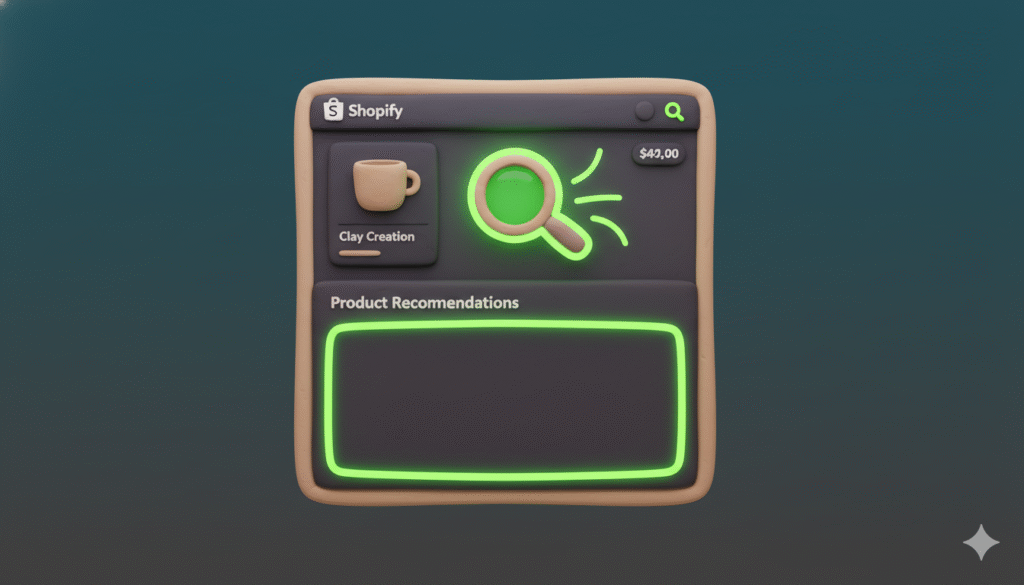
If you run a Shopify store, you might use product recommendations to boost sales. But what if this feature is turned on and still not showing? Or it flashes for a second and then disappears? This is a common problem that can hurt your store’s performance.
This guide will show you how to find the cause and fix it for good. We cover simple checks and more advanced code fixes.
What are Shopify product recommendations?
Shopify product recommendations are a built-in feature. They automatically suggest relevant products to your customers. You can show them on product pages, cart pages, and your home page.
This helps customers discover more items they might like, which can increase the average order value.
Why are my product recommendations not showing?
There are a few common reasons why your product recommendations might be missing. Often, the section is loading but then gets hidden due to a problem.
It could be a theme issue, a setting you missed, or a conflict with an app. The next sections will help you find the exact reason.
How to check your product recommendations settings
- Go to your Shopify admin dashboard.
- Navigate to Online Store > Themes.
- Find your current theme and click Customize.
- Go to the product page template.
- Look for the product recommendations section.
- Check that it is enabled and has products to show.
Note: Sometimes, if you have a small catalog, there might not be enough products for Shopify to recommend.
How to test for app conflicts
A third-party app can sometimes break your theme’s features.
- Go to Shopify admin and click Settings > Apps and sales channels.
- Review your installed apps.
- Disable them one by one and check your store after each one.
Or, for a faster test:
- Disable all apps and see if recommendations appear.
- If they do, you know an app is the cause.
- You can then reactivate apps one by one to find the problematic one.
How to check your theme code for errors
If your settings and apps are fine, the issue might be in your theme code. This is a more technical step.
Important: Always duplicate your theme before making any changes. This creates a backup in case something goes wrong.
Common Fix:
- From your Shopify admin, go to Online Store > Themes.
- Click Actions > Edit code for your live theme.
- In the Assets folder, find and open the
theme.jsfile (it might be named slightly differently). - Look for a line of code that contains
recommendations.
A common issue is a missing element that the JavaScript code expects.
- You can try adding a code snippet to fix a loading problem.
- Look for the product recommendations section in the code and ensure it is properly structured.
- Sometimes, the code tries to load the recommendations but fails if the section is empty. This can cause it to show briefly and then hide.
- You can add a simple check to prevent this.
How to contact Shopify support for help
If you have tried all the steps and the problem remains, contact Shopify Support.
- Have your store URL ready.
- Explain the exact steps you have already tried.
This helps Shopify solve your problem faster by checking your store’s logs and settings for deeper issues.
Conclusion
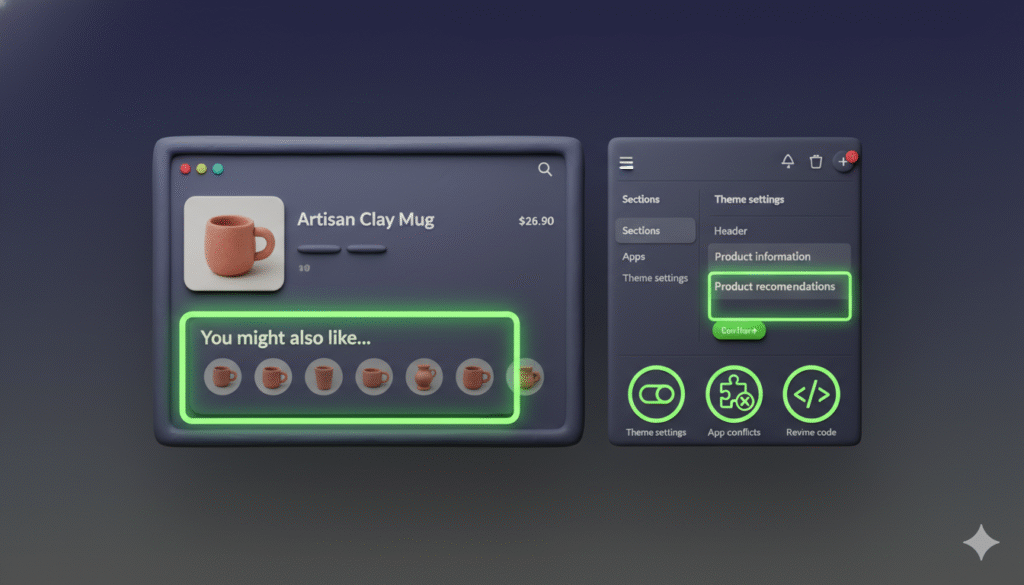
Fixing product recommendations that are not showing is usually a process of elimination:
- Start with your theme settings.
- Check for app conflicts.
- Review your theme code.